(日本語の説明は下部をご覧ください / Japanese version below)
A VRM 3D character that lives in your VS Code sidebar (reacts to Claude Code / GitHub Copilot) or browser side panel (reacts to ChatGPT / Claude). Animations and speech bubbles all run without AI too.
YouTube Demo ↓
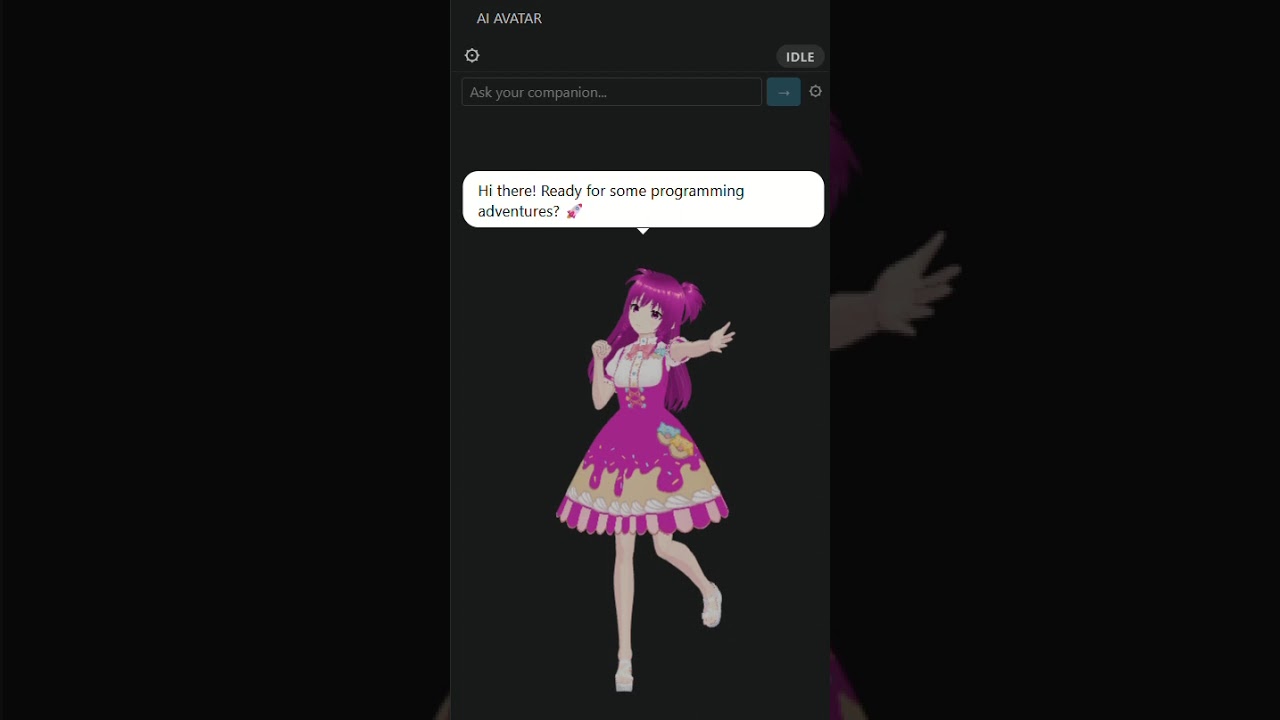
🎉 Thank you for 100+ installs on VS Code!
🛒 Download from VS Code Marketplace
🛒 Download from Chrome Web Store
📖 Read the story behind this project on DEV.to:
- v1 → AI Avatar (VS Code Extension)
- v2 → AI Avatar v2 with Pose Editor (VS Code Extension)
- v3,v4 → 😊How to Get Cheered Up 24/7 (AI Avatar v4 with Animation Editor (Chrome Extension + VS Code Extension))
- v5,v6 → 🦸Let Superheroes Cheer You Up (AI Avatar v6: Chrome Extension + VS Code Extension)
- v7 → 🫡We'll Support You with All Our Might (AI Avatar v7: Pose Capture and More (VS Code and Chrome Extension))
- v8,v9,v10 → 🎥AI Chat, AI Cheering Messages, and Animation Editor Hyper (AI Avatar v10: VS Code and Chrome Extension)
- v11,v12,v13 → coming soon!

- 🎭 Live reactions — character automatically reacts when you send a message to AI
- 🔀 Watcher switching (VS Code only) — switch between watching Claude Code or GitHub Copilot (v2)
- 🔄 Change Avatar — swap your
VRMcharacter anytime with the button at the top - 💃 Animations — play
.vrmamotion clips or custom JSON poses; 5 separate toggle buttons: Off / Default / Random (v7) / Custom (v2) / Custom Random (v8) (v10) - 💬 AI Speech Bubble (VS Code only) — toggle Fixed/AI mode; in AI mode the character reacts to Claude Code activity with context-aware speech (v10)
- 🎬 Animation Editor — multi-keyframe timeline with in / hold / out timing (v4); all 30 finger bones (v5); values in degrees (v5)
- 🎨 Random Editor — edit zone-split pattern JSON directly in the Animation Editor; Body & Arms / Legs / Fingers zones, add/delete/navigate patterns (v8)
- 🎥 OrbitControls — drag to rotate, scroll to zoom, right-click to pan
- 👀 Eye tracking — eyes and head follow your mouse cursor when idle
- 💬 Lipsync — mouth animates while Claude is replying
- 😊 Click or press Enter to interact — triggers a smile, nod, and animation (if ON)
- 💬 Custom speech messages — edit the speech bubble messages via the Messages button (saved to settings)
- 😂 Jokes — avatar tells jokes via the Jokes button (v2)
- 📸 Pose Capture — capture a real body pose with your webcam and export it as a VRM animation JSON (v7)
- ❤️ Positive word reactions (VS Code only) — heart counter, smile, and heart overlay animation when positive words are detected; broken heart and head shake on negative words (v7)
- 🔍 Prompt Checker [Beta] (VS Code only) — paste any AI prompt and get instant rule-based feedback on clarity, specificity, and structure (v7)
- 🦁 Giant Mode (Chrome only) — float the avatar as a draggable, resizable overlay over any web page (v7)
- 🤖 AI Chat — always-visible chat input at the bottom of the panel; ask the avatar anything; replies appear as speech bubbles and trigger animations; supports Gemini API and Ollama (v9)
- 🗣️ Text-to-Speech — Speech:Off / Speech:API (Web Speech API) / Speech:AI (Gemini TTS, uses your API key) (v11) / Speech:Local (Kokoro EN + VOICEVOX JP) (v13)
- 🧠 Contextual speech bubbles — character reacts to special days (EN/JP separate lists), session count milestones, coding gap, session length, day of week, and time of day (v11)
- 🎭 AI Style — Cute / Energetic / Cool character modes (v11)
- 🌐 Lang toggle — single
Lang: EN/JPbutton controls bubble language and chat language together (v11) - 🕺 Richer idle animations — random cycle picks from neck tilt / body tilt / whole-body gravity lean each interval (v11)
- 🪙 Millionaire Mode — 3D coin or diamond fountain bursts from the avatar on every reaction (v12)
No setup needed — comes with a built-in sample character.
VS Code
- Install from the VS Code Marketplace
- Click the AI Avatar icon in the activity bar to open the sidebar
- Use Claude Code or GitHub Copilot — your avatar reacts automatically
Chrome
- Install from the Chrome Web Store
- Pin it to the toolbar
- Click the AI Avatar icon and open the Side Panel
- Chat on ChatGPT or Claude — your avatar reacts automatically
You can create your own 3D avatar for free using VRoid — no 3D modeling skills needed. Design your character and export it as a .vrm file.
Click the Change Avatar button at the top of the sidebar to pick a .vrm file.
v6 adds new sample characters — three girls and two boys — plus cute, cool, and funny pose packs. (free download from GitHub Releases)
There are five animation buttons. Click one to activate it — the active button is highlighted. The selected state is remembered across restarts.
| Button | Behavior |
|---|---|
Animation: Off |
No motion clips play |
Animation: Default |
Plays the built-in sample poses included with the extension |
Animation: Random |
Generates random poses from built-in zone patterns (v7) |
Animation: Custom |
Opens a file picker — plays .vrma and .json pose files from your chosen folder |
Animation: Custom Random |
Pick a custom random-custom.json — generates random poses from your own zone patterns (v8) |
Using .vrma clips from VRoid Project:
VRMA Animation files are not included in the extension because they cannot be redistributed under their license terms. Please download them yourself for free from the official VRoid Project:
👉 VRM Animation 7-Pack by VRoid Project (free)
The pack includes 7 animations: Show full body, Greeting, Peace sign, Shoot, Spin, Model pose, and Squat.
- Download and unzip the pack
- Click Animation until it shows
Animation: Custom - Pick the folder containing the
.vrmafiles - A random clip plays each time the AI responds
YouTube Demo ↓
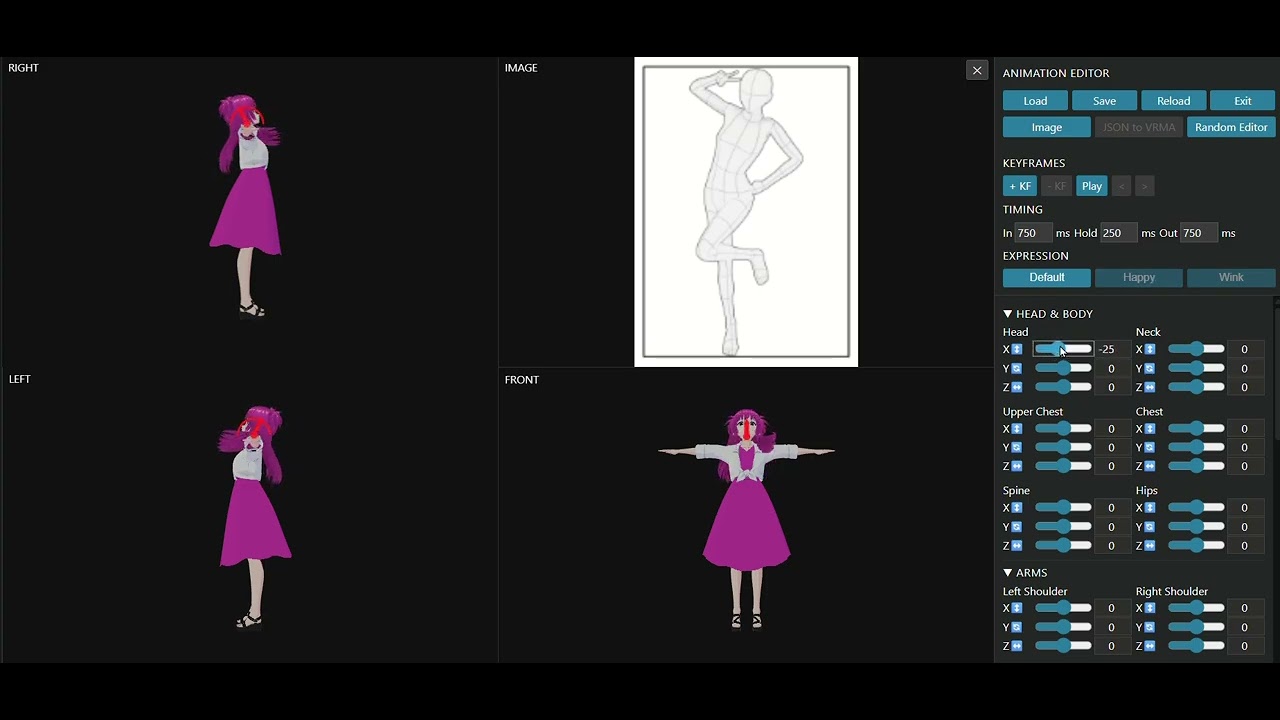
Click Edit Animation to open the animation editor as a full VS Code tab:
Views (v8)
- Three synchronized cameras displayed side by side: RIGHT / FRONT / LEFT — see all angles at once (v8)
- Image button switches to a 2×2 layout (FRONT + reference image top row, RIGHT + LEFT bottom row) — load any image as a pose reference (v8)
Bone editing
- Full 2-column bone list covering all body parts — head, neck, spine, arms, hands, legs, and all 30 finger bones (v5)
- Drag the slider or type a value in degrees to rotate each bone (v5)
- A bone arc trail appears on the avatar when you focus a slider or input — visual rotation feedback (v8)
- Quick-apply preset buttons at the bottom: Body & Arms / Legs / Fingers presets apply built-in zone patterns instantly (v8)
Keyframes & timing
- Add multiple keyframes with + KF to build a full animation sequence (v4)
- Each keyframe has In (fade in), Hold, and Out (fade out, last keyframe only) timing (v4)
- Navigate keyframes with < >, delete with − KF, preview with Play (v4)
Expression
- Per-keyframe expression: Default / Happy / Wink (v7)
Actions
- Load — pick a different JSON pose file to edit
- Save — write the animation back to the JSON file; adds it to the random pool
- Reload — re-read the file from disk, discarding unsaved edits
- JSON to VRMA — export the keyframe animation as a
.vrmaVRM Animation file (v8) - Exit — close the editor tab and reopen the sidebar (v8)
Random Editor (v8)
- Click Random Editor to open the zone-split pattern JSON editor
- Opens with the built-in
random-custom.jsonloaded automatically — click Load Random to switch to a different pattern JSON file - Switch between Body & Arms / Legs / Fingers zones — only relevant bones are shown, unrelated ones are hidden
- Navigate patterns with < >, add with +, delete with −; name is editable
- Save writes all edits back to the JSON file; Reload re-reads from disk
- Exit Random returns to the normal editor
A chat input is always visible at the bottom of the panel. Type a message and press → to send. The avatar animates and shows the reply as a wide speech bubble.

Click the ⚙ button next to the input to open chat history, provider settings, and system prompt.
Providers
-
Gemini — cloud API; requires a free API key from Google AI Studio
-
Ollama — runs locally on your machine; no API key needed; install from ollama.com
After installing Ollama, pull the model once before use:
ollama pull qwen2.5:3bNote: The first message is slow — Ollama loads the model from disk into RAM on initial use. Subsequent messages in the same session are much faster once the model is in memory.
Model choice: Smaller models (e.g.
qwen2.5:1.5b) respond faster but with simpler replies. Larger models (e.g.qwen2.5:7b) are slower but give more detailed, accurate answers. Change the model in ⚙ settings.Tip: Keep questions short and focused — lightweight models (local or Gemini Flash) handle concise prompts best.
Chrome only: Ollama blocks requests from browser extensions by default. Fix it once:
- Win+R → type
sysdm.cpl→ Advanced → Environment Variables → New - Name:
OLLAMA_ORIGINS/ Value:* - Quit Ollama from the system tray → relaunch it — no reboot needed
- Win+R → type
Settings (⚙ button)
- Switch provider with the Gemini / Ollama toggle
- Enter your Gemini API key (stored securely, never committed)
- Set the model name (default:
gemini-3.1-flash-lite/qwen2.5:3b) - Edit the system prompt — default: cheerful 1-sentence coding companion with emoji
Three speech modes — select one at a time:
| Button | Behavior |
|---|---|
Speech: Off |
Silent — no audio |
Speech: API |
Web Speech API — browser built-in voices, works offline, available on VS Code and Chrome |
Speech: AI |
Gemini TTS — natural neural voices via Gemini API (requires API key from AI Chat settings) |
Two voice options apply to both modes:
| Button | Voice |
|---|---|
Speech: Female |
Aoede — warm, bright |
Speech: Male |
Charon — calm, cool |
Speech:AI requires the same Gemini API key used for AI Chat. If no key is set, Speech:AI silently falls back to no audio.
Offline TTS — no API key or internet required. Select Speech:Local in the Speech radio group.
Two engines run depending on language:
| Lang | Engine | Requirement |
|---|---|---|
Lang: EN |
Kokoro — lightweight English neural TTS, runs fully in-browser | None — model downloads automatically (~85 MB on first use) |
Lang: JP |
VOICEVOX — high-quality Japanese TTS with character voices | You must download and install VOICEVOX yourself (free), then keep it running |
Kokoro downloads and caches the model on first use, then warms it up so the first response is instant. No further downloads after the initial load.
VOICEVOX setup (required for JP):
- Download VOICEVOX from voicevox.hiroshiba.jp (free, Windows / Mac / Linux)
- Install and launch it — it runs as a local server on port 50021
- Keep VOICEVOX running while using Speech:Local with Lang: JP
If VOICEVOX is not running when you switch to JP+Local, a status message appears in the panel. Start VOICEVOX and it connects automatically on the next message.
Voice gender (Female / Male) applies to both engines.
The speech bubble checks a priority chain before showing a message. Higher-priority conditions fire first; each fires at most once per session:
| Priority | Condition | Example |
|---|---|---|
| 1 | Special day (holiday) | "Happy Halloween! 🎃" |
| 2 | Session count milestone | "10th reaction today! 🎉" |
| 3 | Long gap since last reaction | "Welcome back! Missed you 💕" |
| 4 | Long session | "You've been at it for an hour! 🔥" |
| 5 | Day of week | "Happy Monday! Let's go! ⚡" |
| 6 | Time of day | "Good morning! ☀️" |
| 7 | AI / fixed pool | Normal reaction message |
EN and JP use separate message pools and separate special day lists (Western vs Japanese holidays).
Three character personality modes — select one at a time:
| Button | Tone | Emoji |
|---|---|---|
AI Style: Cute |
Warm, sweet, encouraging | 💕 ✨ |
AI Style: Energetic |
Enthusiastic, high-energy, motivating | 🔥 ⚡ |
AI Style: Cool |
Calm, confident, minimal | ✓ 🎯 |
Switching style automatically updates both:
- The speech bubble AI prompt (short reaction lines)
- The chat system prompt (full chat replies)
Available on VS Code and Chrome.
Select a mode with the Millionaire radio buttons in the toolbar:
| Option | Behavior |
|---|---|
Off |
No fountain (default) |
Coin |
3D gold coins burst from the avatar on every reaction |
Diamond |
3D pink crystal diamonds burst from the avatar on every reaction |
The Millionaire: Sound button toggles a chime sound for each burst — coin plays a short C6 ring, diamond plays a longer crystal chime. The sound button is disabled when Millionaire is set to Off.
Click the Switch Watcher button to toggle between watching Claude Code and GitHub Copilot activity.
You can also set the default watcher in settings via vroidCompanion.activeWatcher.
Click the Messages button to edit the messages shown in the speech bubble when the avatar reacts.
- Enter messages separated by
|(pipe), e.g.You can do it! | Nice work! | Love that fix! - Messages are saved to VS Code settings and persist across restarts
- You can also edit them directly under
vroidCompanion.speechMessagesin settings
Click the Giant Mode button to float the avatar as a draggable, resizable overlay over any web page. The avatar reacts to AI activity detected on the page.

You can display both panels side by side at the same time:
- Right-click either extension's icon in the activity bar
- Select Move to Secondary Side Bar
One panel goes to the left sidebar, the other to the right — you can choose which side each one is on.
- VS Code 1.85+
- Claude Code CLI or VS Code extension (for automatic reactions)
v1 ✅
- VRM character in VS Code sidebar
- Live reactions to Claude Code activity
- Eye tracking, lipsync, OrbitControls
- Change Avatar, speech bubble messages
v2 ✅
- 3-state Animation button (off / Default / Custom)
- Custom pose editor with JSON save/load
- Jokes button
- GitHub Copilot watcher support
- Watcher switching (Claude ↔ Copilot)
v3 ✅
- 🌐 Chrome extension version
- Various fixes and adjustments
v4 ✅
- Pose Editor upgraded to full Animation Editor
- Multi-keyframe timeline with in / hold / out timing
- Various fixes and adjustments
v5 ✅
- Enter key on terminal triggers animation (VS Code)
- Fixed reload to always restore the latest saved pose
- All 30 finger bones added to the animation editor
- Animation editor values now shown and saved in degrees (backward compatible)
- BG toggle button — gray background to see dark-colored avatars
- Various UI polish: button styling, focus outlines, editor colors
v6 ✅
- New sample characters: 3 girls and 2 boys (free download from GitHub Releases)
- New pose packs: cute, cool, and funny poses (free download from GitHub Releases)
v7 ✅
- 📸 Pose Capture — capture a real body pose with webcam and export it as a VRM animation JSON
- ❤️ Positive word reactions (VS Code only) — heart counter, smile, and heart overlay animation when positive words are detected; broken heart and head shake on negative words
- 🦁 Giant Mode (Chrome only) — float the avatar as a draggable, resizable overlay over any web page
- 🎲 Animation: Random mode — new 4th state generates random poses from zone patterns (expression, body + arm, fingers, legs)
- 😊 Expression editor — add Happy or Wink expressions to animation keyframes directly in the editor
- 🖱️ Click anywhere to react (Chrome only) — clicking any web page triggers an animation on the avatar
- 🔍 Prompt Checker [Beta] (VS Code only) — paste any AI prompt and get instant rule-based feedback on clarity, specificity, and structure
v8 ✅
- 🎲 Animation: Random Custom — 5th animation state; pick a custom zone-pattern JSON, plays random pose combos
- 🎨 Random Editor — zone-split pattern JSON editor inside the Animation Editor (Body & Arms / Legs / Fingers zones)
- 🎬 Animation Editor update — now opens as a full-screen tab; three-camera view (RIGHT / FRONT / LEFT), image reference layout, bone arc trail, zone preset buttons, JSON to VRMA export
v9 ✅
- 🤖 AI Chat — always-visible chat input; ask the avatar anything; replies appear as wide speech bubbles and trigger animations; supports Gemini API and Ollama (local)
- 🎛️ Panel layout redesign — collapsible toolbar behind ⚙ gear
- 🐛 Fixed flaky positive/negative word detection (VS Code only) — now reliably catches keywords in your messages to Claude Code
v10 ✅
- 💬 AI Speech Bubble (VS Code only) — toggle between Fixed and AI mode; in AI mode the character reacts to Claude Code activity with context-aware speech; messages customizable
- 🎛️ Toolbar redesign — 4 fixed rows always visible; animation split into 5 separate toggle buttons (Off / Default / Random / Custom / Custom Random); Positive Words and Negative Words as direct buttons
- 🎭 Improved idle & thinking animations — random idle head micro-tilt every 6–10s; thinking state now shows a natural Z-axis pondering tilt with gentle oscillation
v11 ✅
- 🗣️ Text-to-Speech — Speech:Off / Speech:API (Web Speech API) / Speech:AI (Gemini TTS)
- 🧠 Contextual speech bubbles — character reacts to special days (EN/JP), session count milestones, coding gaps, session length, day of week, and time of day
- 🎭 AI Style — Cute / Energetic / Cool modes
- 🌐 Lang toggle — single button controls bubble language and chat language together
- 🕺 Richer idle animations — random cycle picks from neck tilt / body tilt / whole-body gravity lean
v12 ✅
- 🪙 Millionaire Mode — 3D coin or diamond fountain bursts from the avatar on every reaction
- 🎛️ Radio group UI — animation, AI style, speech, provider, and millionaire controls redesigned as inline radio buttons
v13 ✅
- 🗣️ Speech:Local — Kokoro (EN offline TTS, no API key needed) + VOICEVOX (JP local TTS)
- 💬 Bubble On/Off toggle — hide speech bubbles while keeping TTS audio active
- 🤖 Bubble:AI — contextual messages (special days, time of day, etc.) now go through AI in AI mode
v14 — Now creating!
- 🎉 More fun updates
VS Codeサイドバー(Claude Code / GitHub Copilotに反応)またはブラウザサイドパネル(ChatGPT / Claudeに反応)に表示されるVRM 3Dキャラクターです。AIなしでもアニメーションや吹き出しが動作します。
YouTube Demo ↓
🎉 VS Code版100インストール達成!ありがとうございます!
🛒 VS Code Marketplaceからダウンロード
📖 開発ストーリーはDEV.toで読めます:
- v1 → AI Avatar (VS Code拡張機能)
- v2 → AI Avatar v2 ポーズエディタ付き
- v3,v4 → AI Avatar v4 アニメーションエディタ付き
- v5,v6 → 🦸スーパーヒーローに応援してもらおう (AI Avatar v6)
- v7 → 🫡全力でサポートします! (AI Avatar v7)
- v8,v9,v10 → 🎥AIチャット、AI応援メッセージ、アニメーションエディタ ハイパー (AI Avatar v10: VS Code・Chrome拡張機能)
- v11,v12,v13 → coming soon!
- 🎭 リアクション — Claude Code / GitHub Copilotが考え中または返答したとき自動でキャラクターが反応
- 🔀 ウォッチャー切り替え (VS Code限定) — Claude CodeとGitHub Copilotの監視を切り替え (v2)
- 🔄 アバター変更 — 上部のボタンで
VRMキャラクターをいつでも変更可能 - 💃 アニメーション —
.vrmaモーションクリップやカスタムJSONポーズを再生;5つの独立トグルボタン:Off / Default / Random (v7) / Custom (v2) / Custom Random (v8) (v10) - 💬 AI吹き出し (VS Code限定) — Fixed/AIモードを切り替え;AIモードでは Claude Code の活動に反応してコンテキストに応じた発言をする (v10)
- 🎬 アニメーションエディタ — 複数キーフレームタイムライン(In / Hold / Outタイミング) (v4);全30指ボーン対応 (v5);度数表示 (v5)
- 🎨 ランダムエディタ — アニメーションエディタ内でゾーン分割パターンJSONを直接編集;ボディ&アーム / 脚 / 指ゾーン、パターンの追加・削除・ナビゲーション (v8)
- 🎥 オービットコントロール — ドラッグで回転、スクロールでズーム、右クリックでパン
- 👀 視線追跡 — アイドル時に目と頭がマウスカーソルを追う
- 💬 リップシンク — Claudeの返答中に口が動く
- 😊 クリックまたはEnterキーで反応 — スマイル、うなずき、アニメーションが発動
- 💬 カスタム吹き出しメッセージ — Messagesボタンからメッセージを編集(設定に保存)
- 😂 ジョーク — Jokesボタンでアバターがジョークを言う (v2)
- 📸 ポーズキャプチャ — ウェブカメラで体のポーズを撮影し、VRMアニメーションJSONとして書き出し (v7)
- ❤️ ポジティブワード反応 (VS Code限定) — ポジティブワード検出時にハートカウンター・スマイル・ハートオーバーレイアニメーション;ネガティブワードには割れたハートと首振り (v7)
- 🔍 プロンプトチェッカー [Beta] (VS Code限定) — AIプロンプトを貼り付けるだけで、明確さ・具体性・構造をルールベースで即チェック (v7)
- 🦁 ジャイアントモード (Chrome限定) — ドラッグ・リサイズ可能なオーバーレイとしてアバターをどのページにも表示 (v7)
- 🤖 AIチャット — パネル下部に常時表示されるチャット入力;アバターに何でも質問できる;返答は吹き出しで表示してアニメーションも発動;Gemini APIとOllama対応 (v9)
- 🗣️ 音声読み上げ(TTS) — Speech:Off / Speech:API(Web Speech API)/ Speech:AI(Gemini TTS、APIキーを使用) (v11) / Speech:Local(Kokoro EN + VOICEVOX JP) (v13)
- 🧠 コンテキスト吹き出し — 特別な日(EN/JP別リスト)、セッション数マイルストーン、反応間隔、セッション時間、曜日、時間帯に応じた吹き出し (v11)
- 🎭 AIスタイル — Cute / Energetic / Coolの3つのキャラクターモード (v11)
- 🌐 言語切り替え —
Lang: EN/JP1つのボタンで吹き出しとチャットの言語を同時に切り替え (v11) - 🕺 豊かなアイドルアニメーション — 首の傾き / 体の傾き / 重力リーンをランダムにサイクル (v11)
- 🪙 ミリオネアモード — リアクションのたびにアバターから3Dコインまたはダイヤモンドの噴水が出る (v12)
セットアップ不要 — サンプルキャラクターが最初から入っています。
VS Code
- VS Code Marketplaceからインストール
- アクティビティバーの AI Avatarアイコン をクリックしてサイドバーを開く
- Claude CodeまたはGitHub Copilotを使う — アバターが自動で反応
Chrome
- Chrome ウェブストアからインストール
- ツールバーにピン留め
- AI Avatarアイコン をクリックしてサイドパネルを開く
- ChatGPTまたはClaudeでチャット — アバターが自動で反応
VRoid を使えば3Dモデリングの知識なしに無料でオリジナルアバターを作れます。キャラクターをデザインして .vrm ファイルとしてエクスポートしてください。
サイドバー上部の Change Avatar ボタンから .vrm ファイルを選択。
v6では新しいサンプルキャラクター(女の子3体・男の子2体)とポーズパック(かわいい・クール・おもしろ)を追加しました。 (GitHubリリースから無料ダウンロード)
5つのアニメーションボタンがあります。クリックで有効化 — 有効なボタンはハイライト表示されます。選択した状態は再起動後も保持されます。
| ボタン | 動作 |
|---|---|
Animation: Off |
モーションクリップを再生しない |
Animation: Default |
拡張機能付属のサンプルポーズを再生 |
Animation: Random |
内蔵ゾーンパターンからランダムにポーズを生成 (v7) |
Animation: Custom |
ファイルを選択し .vrma と .json ポーズファイルを再生 |
Animation: Custom Random |
カスタム random-custom.json を選択 — 独自ゾーンパターンからランダムにポーズを生成 (v8) |
VRoid Projectの .vrma クリップを使う:
VRMAアニメーションファイルはライセンスの都合上、拡張機能に含まれていません。公式VRoidプロジェクトから無料でダウンロードしてください:
👉 VRM Animation 7本パック by VRoid Project(無料)
パックには7つのアニメーションが含まれます:全身表示、挨拶、ピースサイン、シュート、スピン、モデルポーズ、スクワット。
- パックをダウンロードして解凍
- Animation ボタンを
Animation: Customになるまでクリック .vrmaファイルが入ったフォルダを選択- AIが返答するたびにランダムなクリップが再生
YouTube Demo ↓
Edit Animation をクリックするとVS Codeの専用タブとしてエディタが開きます:
表示 (v8)
- RIGHT / FRONT / LEFT の3方向カメラを同期表示 — すべての角度を一画面で確認 (v8)
- Image ボタンで2×2レイアウトに切り替え(上段:FRONT+参考画像、下段:RIGHT+LEFT)— ポーズ参考用の画像を読み込み可能 (v8)
ボーン編集
- 全身の2カラムボーンリスト — 頭・首・脊椎・腕・手・脚、そして全30指ボーン (v5)
- スライダー または 度数入力 でボーンを回転 (v5)
- スライダー/入力にフォーカスすると、アバターにボーン弧トレイルが表示 — 回転の視覚フィードバック (v8)
- 下部のプリセットボタン:ボディ&アーム / 脚 / 指のゾーンパターンをワンタッチ適用 (v8)
キーフレームとタイミング
- + KF で複数キーフレームを追加してアニメーションシーケンスを構築 (v4)
- 各キーフレームに In(フェードイン)・Hold・Out(フェードアウト、最終KFのみ)タイミング設定 (v4)
- < > でナビゲート、− KF で削除、Play でプレビュー (v4)
表情
- キーフレームごとに表情設定:Default / Happy / Wink (v7)
アクション
- Load — 別のJSONポーズファイルを選択して読み込み
- Save — JSONファイルに書き戻し、ランダムプールに追加
- Reload — ディスクからファイルを再読み込み、未保存の編集を破棄
- JSON to VRMA — キーフレームアニメーションを
.vrmaVRMアニメーションファイルとしてエクスポート (v8) - Exit — エディタタブを閉じてサイドバーを再表示 (v8)
ランダムエディタ (v8)
- Random Editor をクリックしてゾーン分割パターンJSONエディタを開く
- デフォルトの
random-custom.jsonを自動で読み込んで開始 — Load Random で別のパターンJSONファイルに切り替え可能 - ボディ&アーム / 脚 / 指 ゾーンを切り替え — 関連ボーンのみ表示、無関係なボーンは非表示
- < > でパターンをナビゲート、+ で追加、− で削除、名前を編集可能
- Save でJSONファイルに書き戻し、Reload でディスクから再読み込み
- Exit Random で通常エディタに戻る
チャット入力欄がパネル下部に常時表示されます。メッセージを入力して → を押すと送信。アバターがアニメーションし、返答を大きな吹き出しで表示します。
入力欄横の ⚙ ボタンでチャット履歴・プロバイダー設定・システムプロンプトを開けます。
プロバイダー
-
Gemini — クラウドAPI;Google AI Studio で無料のAPIキーを取得
-
Ollama — ローカルで動作;APIキー不要;ollama.com からインストール
インストール後、使用前に一度モデルをダウンロードしてください:
ollama pull qwen2.5:3b注意: 最初のメッセージは遅いですが正常です — Ollamaは起動時にモデルをディスクからRAMに読み込みます。同じセッション中の2回目以降はモデルがメモリに残るため、大幅に速くなります。
モデルの選び方: 小さいモデル(例:
qwen2.5:1.5b)は速いが回答がシンプル。大きいモデル(例:qwen2.5:7b)は遅いが精度が高く詳細な回答が得られます。⚙ 設定からモデルを変更できます。ヒント: 質問は短く簡潔にまとめると効果的です — ローカルモデルもGemini Flashも、シンプルなプロンプトに最も適しています。
Chrome限定: OllamaはデフォルトでChrome拡張機能からのアクセスをブロックします。一度だけ設定が必要:
- Win+R →
sysdm.cpl→ 詳細設定 → 環境変数 → 新規 - 変数名:
OLLAMA_ORIGINS/ 値:* - タスクトレイのOllamaを終了 → 再起動(PCの再起動は不要)
- Win+R →
設定(⚙ボタン)
- Gemini / Ollamaトグルでプロバイダーを切り替え
- Gemini APIキーを入力(安全に保存され、コミットされません)
- モデル名を設定(デフォルト:
gemini-3.1-flash-lite/qwen2.5:3b) - システムプロンプトを編集 — デフォルト:絵文字付き1文で励ます陽気なコーディング仲間
3つのモードから1つを選択:
| ボタン | 動作 |
|---|---|
Speech: Off |
無音 |
Speech: API |
Web Speech API — ブラウザ内蔵音声、オフライン動作可、VS Code・Chrome両対応 |
Speech: AI |
Gemini TTS — Gemini APIによる自然な音声(AIチャット設定のAPIキーを使用) |
2つのボイス設定:
| ボタン | ボイス |
|---|---|
Speech: Female |
Aoede — 明るく温かい |
Speech: Male |
Charon — 落ち着いてクール |
Speech:AIにはAIチャットと同じGemini APIキーが必要です。キーが未設定の場合は無音になります。
オフラインTTS — APIキーもインターネット接続も不要。Speechラジオグループで Speech:Local を選択します。
言語に応じて2つのエンジンが動作します:
| 言語 | エンジン | 必要環境 |
|---|---|---|
Lang: EN |
Kokoro — ブラウザ内で完結する軽量英語ニューラルTTS | なし — モデルは初回使用時に自動ダウンロード(約85 MB) |
Lang: JP |
VOICEVOX — キャラクターボイス対応の高品質日本語TTS | VOICEVOXを自分でダウンロード・インストール(無料)して起動しておく必要があります |
Kokoro は初回使用時にモデルをダウンロード・キャッシュし、ウォームアップを行うことで初回レスポンスを高速化します。2回目以降は追加ダウンロード不要です。
VOICEVOXのセットアップ(JP使用時に必須):
- voicevox.hiroshiba.jp からVOICEVOXを無料ダウンロード(Windows / Mac / Linux対応)
- インストールして起動 — ポート50021でローカルサーバーとして動作します
- Lang: JPでSpeech:Localを使用する間はVOICEVOXを起動したままにしてください
JP+Local切り替え時にVOICEVOXが起動していない場合、パネルにステータスメッセージが表示されます。VOICEVOXを起動すれば次のメッセージから自動接続します。
音声の性別(Female / Male)は両エンジンに適用されます。
吹き出しはメッセージを表示する前に優先度チェーンを確認します。高優先度の条件が先に発動し、各条件はセッション中1回のみ:
| 優先度 | 条件 | 例 |
|---|---|---|
| 1 | 特別な日(祝日) | "Happy Halloween! 🎃" |
| 2 | セッション数マイルストーン | "今日10回目のリアクション!🎉" |
| 3 | 前回の反応からの間隔 | "おかえり!待ってたよ 💕" |
| 4 | セッションの長さ | "1時間も頑張ってるね!🔥" |
| 5 | 曜日 | "月曜日!一緒に頑張ろう!⚡" |
| 6 | 時間帯 | "おはよう!☀️" |
| 7 | AI / 通常プール | 通常のリアクションメッセージ |
ENとJPはメッセージプールと特別な日リストが別々(西洋の祝日 vs 日本の祝日)。
3つのキャラクターモードから1つを選択:
| ボタン | トーン | 絵文字 |
|---|---|---|
AI Style: Cute |
温かく、かわいく、励ます | 💕 ✨ |
AI Style: Energetic |
熱狂的、ハイエネルギー、やる気を引き出す | 🔥 ⚡ |
AI Style: Cool |
落ち着いて、自信を持って、シンプルに | ✓ 🎯 |
スタイルを切り替えると以下の両方が自動更新されます:
- 吹き出しのAIプロンプト(短いリアクションセリフ)
- チャットのシステムプロンプト(チャット返答のトーン)
VS CodeとChrome両対応。
ツールバーの Millionaire ラジオボタンでモードを選択:
| オプション | 動作 |
|---|---|
Off |
噴水なし(デフォルト) |
Coin |
リアクションのたびにアバターから3Dゴールドコインが噴き出す |
Diamond |
リアクションのたびにアバターから3Dピンクダイヤモンドが噴き出す |
Millionaire: Sound ボタンでバーストごとのチャイムサウンドをオン/オフできます。MillionaireがOffのときはサウンドボタンは無効になります。
Switch Watcher ボタンで Claude Code と GitHub Copilot の監視を切り替えます。
設定の vroidCompanion.activeWatcher でデフォルトのウォッチャーを設定することもできます。
Messages ボタンをクリックして、アバターが反応したときに吹き出しに表示するメッセージを編集できます。
- メッセージは
|(パイプ)で区切って入力します。例:頑張って! | いいね! | 完璧! - メッセージはVS Code設定に保存され、再起動後も保持されます
vroidCompanion.speechMessagesから直接編集することもできます
Giant Mode ボタンをクリックすると、アバターをドラッグ・リサイズ可能なオーバーレイとしてどのウェブページにも表示できます。ページ上のAI活動を検出してアバターが反応します。
両方のパネルを同時に並べて表示できます:
- アクティビティバーのいずれかの拡張機能アイコンを右クリック
- Move to Secondary Side Bar を選択
一方のパネルが左サイドバー、もう一方が右サイドバーに表示されます。
- VS Code 1.85以上
- Claude Code CLIまたはVS Code拡張機能(自動反応に必要)
v1 ✅
- VS CodeサイドバーにVRMキャラクター表示
- Claude Code活動へのライブ反応
- 視線追跡、リップシンク、オービットコントロール
- アバター変更、吹き出しメッセージ
v2 ✅
- 3段階Animationボタン(オフ / デフォルト / カスタム)
- カスタムポーズエディタ(JSON保存・読み込み)
- Jokesボタン
- GitHub Copilotウォッチャー対応
- ウォッチャー切り替え(Claude ↔ Copilot)
v3 ✅
- 🌐 Chrome拡張機能版
- 各種修正・調整
v4 ✅
- ポーズエディタをフルアニメーションエディタにアップグレード
- In / Hold / Outタイミング付き複数キーフレームタイムライン
- 各種修正・調整
v5 ✅
- ターミナルのEnterキーでアニメーションが発動(VS Code)
- リロードが最後に保存したポーズを正しく復元するよう修正
- アニメーションエディタに全30指ボーンを追加
- エディタの値を度数で表示・保存(既存ファイルとの後方互換性あり)
- BGトグルボタン追加 — グレー背景に切り替えて暗色アバターを見やすく
- UIの各種改善:ボタンスタイル、フォーカス枠、エディタの配色
v6 ✅
- 新サンプルキャラクター:女の子3体・男の子2体(GitHubリリースから無料ダウンロード)
- 新ポーズパック:かわいい・クール・おもしろ(GitHubリリースから無料ダウンロード)
v7 ✅
- 📸 ポーズキャプチャ — ウェブカメラで体のポーズを撮影し、VRMアニメーションJSONとして書き出し
- ❤️ ポジティブワード反応 (VS Code限定) — ポジティブワード検出時にハートカウンター・スマイル・ハートオーバーレイアニメーション;ネガティブワードには割れたハートと首振り
- 🦁 ジャイアントモード (Chrome限定) — ドラッグ・リサイズ可能なオーバーレイとしてアバターをどのページにも表示
- 🎲 Animation: Randomモード — 内蔵のゾーンパターン(表情・体と腕・指・脚)からランダムにポーズを生成する新しい第4状態
- 😊 表情エディタ — アニメーションエディタのキーフレームにHappyまたはWink表情を追加可能
- 🖱️ ページのどこかをクリックで反応 (Chrome限定) — ウェブページをクリックするとアバターがアニメーションで反応
- 🔍 プロンプトチェッカー [Beta] (VS Code限定) — AIプロンプトを貼り付けるだけで、明確さ・具体性・構造をルールベースで即チェック
v8 ✅
- 🎲 Animation: Random Custom — 第5のアニメーション状態;カスタムゾーンパターンJSONを選択してランダムなポーズコンボを再生
- 🎨 ランダムエディタ — アニメーションエディタ内のゾーン分割パターンJSONエディタ(ボディ&アーム / 脚 / 指ゾーン)
- 🎬 アニメーションエディタ アップデート — フルスクリーンタブとして起動;3方向カメラ表示(RIGHT / FRONT / LEFT)、参考画像レイアウト、ボーン弧トレイル、ゾーンプリセットボタン、JSON to VRMAエクスポート
v9 ✅
- 🤖 AIチャット — 常時表示のチャット入力;アバターに何でも質問できる;返答は大きな吹き出しでアニメーション付き;Gemini APIとOllama(ローカル)対応
- 🎛️ パネルレイアウト刷新 — ⚙ギアでツールバーを折りたたみ
- 🐛 ポジティブ/ネガティブワード検出の不安定さを修正 (VS Code限定) — Claude Codeへのメッセージのキーワードを確実に検出するように改善
v10 ✅
- 💬 AI吹き出し (VS Code限定) — FixedとAIモードを切り替え;AIモードではClaude Codeの活動に反応してキャラクターがコンテキストに応じた発言をする;メッセージはカスタマイズ可能
- 🎛️ ツールバーリデザイン — 4行固定表示;アニメーションを5つの独立したトグルボタンに分割(Off / Default / Random / Custom / Custom Random);ポジティブワード・ネガティブワードをダイレクトボタンに
- 🎭 アイドル・思考アニメーション改善 — アイドル時に6〜10秒ごとランダムな頭の微傾き;思考中は自然なZ軸の首かしげポーズとゆっくりした揺れを追加
v11 ✅
- 🗣️ 音声読み上げ(TTS)— Speech:Off / Speech:API(Web Speech API)/ Speech:AI(Gemini TTS)
- 🧠 コンテキスト吹き出し — 特別な日(EN/JP別)、セッション数マイルストーン、反応間隔、セッション時間、曜日、時間帯
- 🎭 AIスタイル — Cute / Energetic / Coolモード
- 🌐 言語切り替え — 1つのボタンで吹き出しとチャットの言語を同時に切り替え
- 🕺 豊かなアイドルアニメーション — 首の傾き / 体の傾き / 重力リーンをランダムにサイクル
v12 ✅
- 🪙 ミリオネアモード — リアクションのたびにアバターから3Dコインまたはダイヤモンドの噴水が出る
- 🎛️ ラジオボタンUI — アニメーション、AIスタイル、音声、プロバイダー、ミリオネアのコントロールをインラインラジオボタンに刷新
v13 ✅
- 🗣️ Speech:Local — Kokoro(ENオフラインTTS、APIキー不要)+ VOICEVOX(JP ローカルTTS)
- 💬 吹き出しOn/Offトグル — TTS音声を維持しながら吹き出しを非表示にできる
- 🤖 Bubble:AI — 特別な日・時間帯などのコンテキストメッセージもAIモードで処理されるように改善
v14 — Now creating!
- 🎉 お楽しみに